
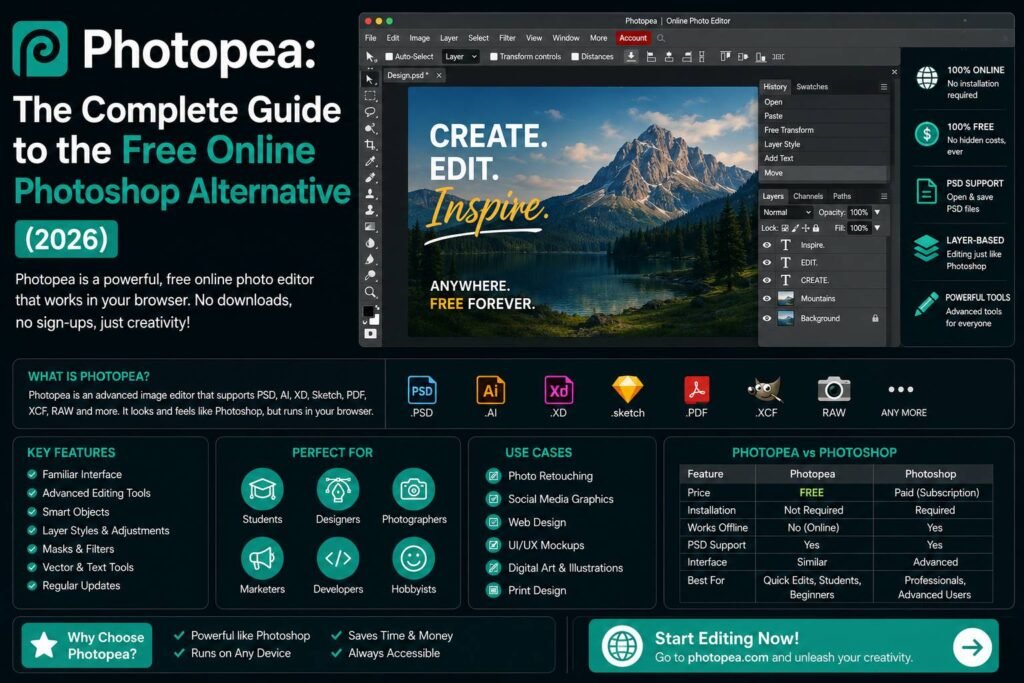

What Is Photopea and Why Is It Worth Your Attention?
If you’ve ever needed professional-grade photo editing software but balked at Adobe’s subscription price, Photopea deserves a serious look. This free, browser-based image editor has quietly grown into one of the most capable alternatives to Photoshop available today — no installation required, no monthly fee, and no compromise on the features that matter most.
Photopea runs entirely in your web browser, supporting PSD, XCF, Sketch, and dozens of other file formats natively. Whether you’re a freelance designer, a small business owner, or a student learning the fundamentals of digital design, this tool delivers a surprisingly deep feature set that rivals software costing hundreds of dollars per year.
Getting Started: The Interface and Learning Curve
Opening Photopea for the first time feels immediately familiar to anyone who has used Adobe Photoshop. The layout mirrors it almost exactly — a toolbar on the left, panels on the right, a layers palette at the bottom right, and a menu bar running across the top. This intentional design choice means that existing Photoshop knowledge transfers directly, and tutorials written for Photoshop often apply here without modification.
For complete beginners, the interface can feel dense. Here’s how to orient yourself quickly:
- File menu — Open, save, and export your projects, including full PSD compatibility
- Edit menu — Access transform tools, fill options, and keyboard shortcut customization
- Layer menu — Create, group, merge, and manage all layer types
- Filter menu — Apply blur, sharpen, distort, and stylize effects
- Window menu — Toggle panels like History, Channels, Paths, and Info
The learning curve is real but manageable. Photopea supports most of the same keyboard shortcuts as Photoshop, so muscle memory built in one application carries over seamlessly.
Core Features That Make Photopea Stand Out
Layer-Based Editing
Like any professional image editor, Photopea is built around non-destructive, layer-based workflows. You can work with raster layers, vector shapes, text layers, adjustment layers, and smart objects — all within the same document. Blend modes, opacity controls, and layer masks function identically to their Photoshop counterparts.
PSD File Compatibility
One of Photopea’s most impressive technical achievements is its native support for Adobe’s PSD format. You can open complex, multi-layer Photoshop files directly in the browser, edit them, and save them back as PSDs without any conversion or quality loss. This makes it an ideal tool for collaborating with designers who use Photoshop professionally.
Selection and Masking Tools
Photopea includes a robust set of selection tools:
- Marquee tools for rectangular and elliptical selections
- Lasso tools including polygonal and magnetic variants
- Magic Wand and Quick Selection for content-aware selections
- Select and Mask workspace for refining complex edges like hair and fur
These tools perform reliably and produce clean results, even on difficult subject matter.
Filters and Adjustments
The Filters menu contains a comprehensive library of effects including Gaussian Blur, Motion Blur, Lens Blur, Unsharp Mask, Liquify, and Camera Raw. The Adjustments panel offers Curves, Levels, Hue/Saturation, Color Balance, Gradient Map, and more — all available as non-destructive adjustment layers.
Vector and Text Capabilities
Photopea handles vector shapes and paths with confidence. You can create scalable graphics using the Pen tool, shape tools, and path operations. Typography tools support custom fonts, including Google Fonts integration, which is particularly useful for web and social media design work.
Photopea vs. Photoshop: An Honest Comparison
The free online Photoshop alternative conversation always comes back to one central question: how close is close enough?
Where Photopea excels:
- Zero cost for the core feature set
- No installation or system requirements beyond a modern browser
- Excellent PSD compatibility
- Familiar interface for Photoshop users
- Works on Chromebooks and low-spec machines
Where Photoshop still leads:
- Performance on very large files or complex compositions
- AI-powered features like Generative Fill and Neural Filters
- 3D editing and video timeline tools
- Plugin ecosystem and third-party integrations
- Offline access without any workarounds
For the vast majority of everyday design tasks — photo retouching, social media graphics, web assets, print layouts, and UI mockups — Photopea handles the workload without meaningful limitations. The gap only becomes noticeable in highly specialized or resource-intensive workflows.
Practical Tips for Getting the Most Out of Photopea
Use the Free Version Strategically
The free tier displays unobtrusive ads. If they become distracting, a premium subscription removes them and adds features like larger cloud storage and offline mode. For casual users, the free version is more than sufficient.
Save Your Work Often
Because Photopea runs in a browser, unexpected tab crashes can result in lost work. Use File > Save as PSD regularly to keep local copies, or enable the autosave feature in the settings.
Leverage Smart Objects
Import logos, icons, and recurring design elements as Smart Objects. This preserves their scalability and allows you to update linked instances across a document simultaneously — a workflow essential for maintaining design consistency.
Customize Your Workspace
Drag and rearrange panels to suit your workflow. Save custom workspace configurations so you can switch between a photo retouching layout and a graphic design layout without manually repositioning everything each time.
Explore the Script and Action System
Photopea supports recorded actions and basic scripting, which can dramatically speed up repetitive tasks like batch resizing, watermarking, or applying consistent color grades across multiple images.
Who Should Use Photopea in 2026?
The answer is broader than you might expect. Students learning design fundamentals, freelancers managing tight budgets, educators who need accessible tools for classrooms, and professionals who need a capable backup editor on a secondary machine — all of these users benefit significantly from what Photopea offers.
It won’t replace Photoshop for high-volume studio workflows or cutting-edge AI editing. But as a free, accessible, and genuinely powerful image editor that runs anywhere with a browser, Photopea has earned its place as the go-to recommendation for anyone seeking a credible alternative in 2026 and beyond.
READ MORE:
- How Seedance AI Is Changing Personal Branding Through Video
- How to Create Cinematic AI Videos with Seedance AI
- Seedance AI: The Complete Guide to ByteDance’s AI Video Generator (2026)
Published By Branding.net.in